Tag

UI

New Staff Page UI

By | Feature / Release | No Comments

The next time you go to add a new employee to your staff page, you may notice that the Edit Staff Page UI in the CMS has changed:
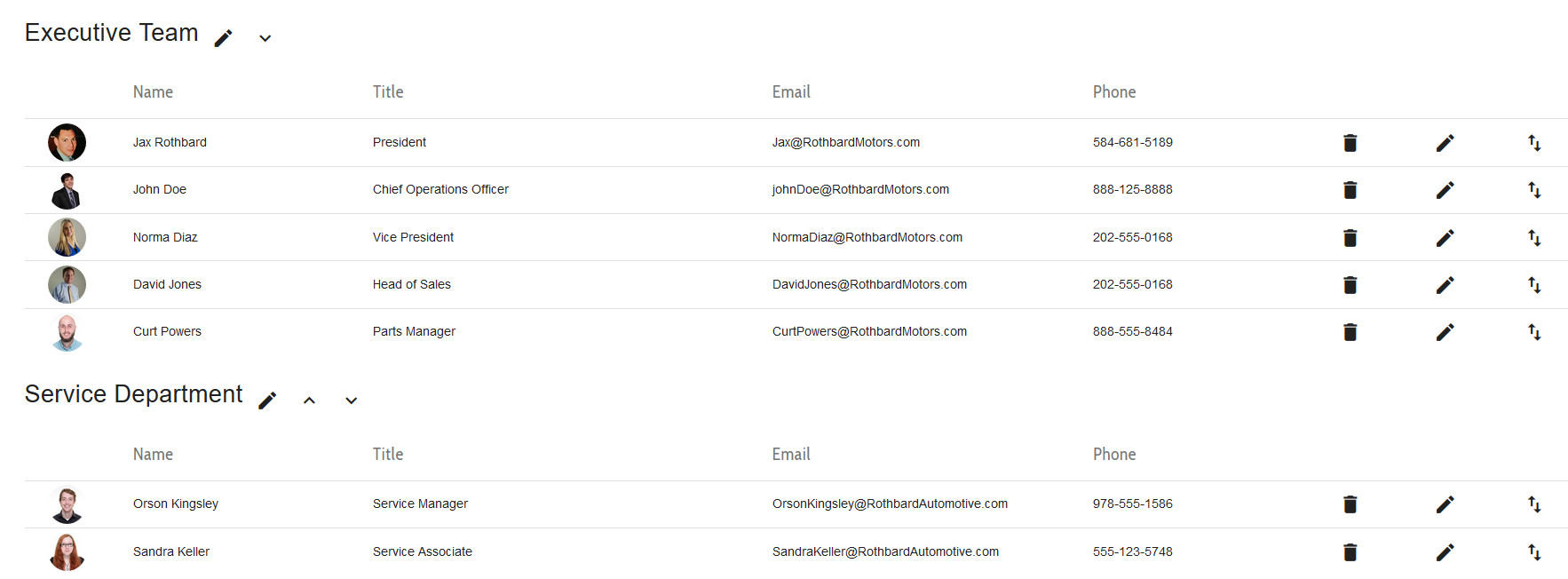
Edit Staff Page


We have made some improvements to the look and feel, along with improving the overall user experience when adding or editing staff and departments.

Now when you add a new employee, you can designate what department to add them to either by selecting an existing one from the dropdown, or by typing a new department name in the field, which will then create that department:
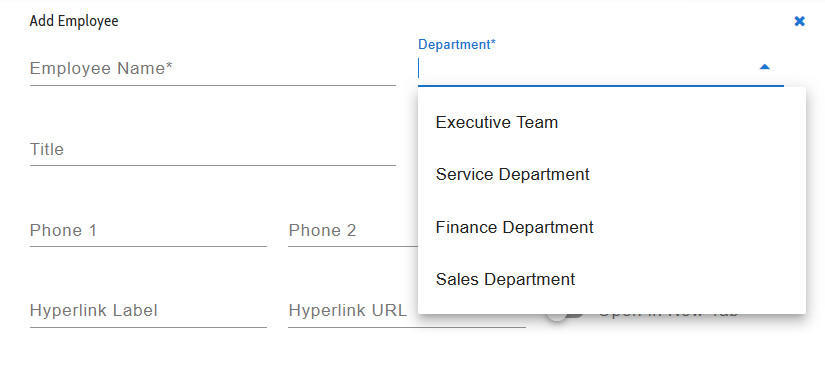
Add Employee


You can also create a new department in the normal manner:
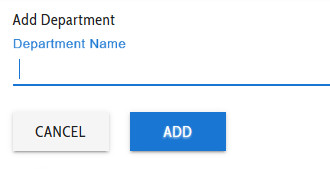
Add Department


When adding either new people or new departments, you have the option to “Add Another”. Activating this switch keeps the creation window open until you have added as many as you need to:
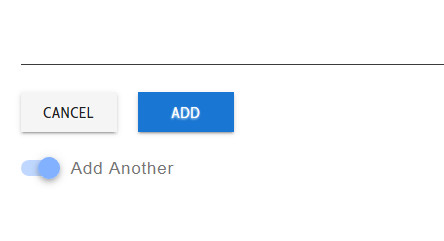
Add Another


All your adding, editing, and configuration options can be accessed by clicking on the orange button in the lower right-hand corner of the screen:
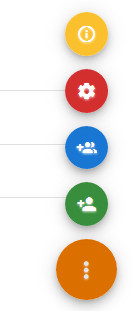
Menu


Also included in this fancy new UI are hotkeys – the menu is accessible by clicking the yellow button seen above, or by pressing Alt+K:
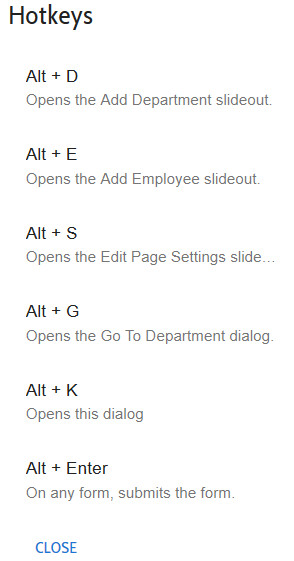
Hotkey Menu


We encourage you to go explore the new UI – please let us know if you have any questions!
Edit Vehicle UI Update

By | Feature / Release | No Comments

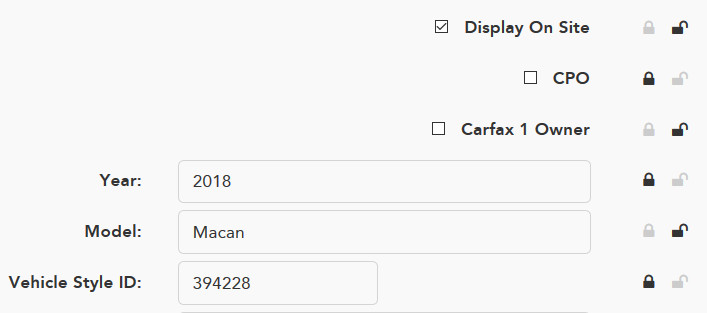
We have made a small update to the UI on the Edit page for a vehicle in your Inventory Manager.


The lock/unlock fields are now easier to see and determine status on – just click to lock or unlock and save your changes! The appropriate status will be indicated by the darker icon:


Sort by Locked Vehicles in Inventory Manager

By | Feature / Release | No Comments

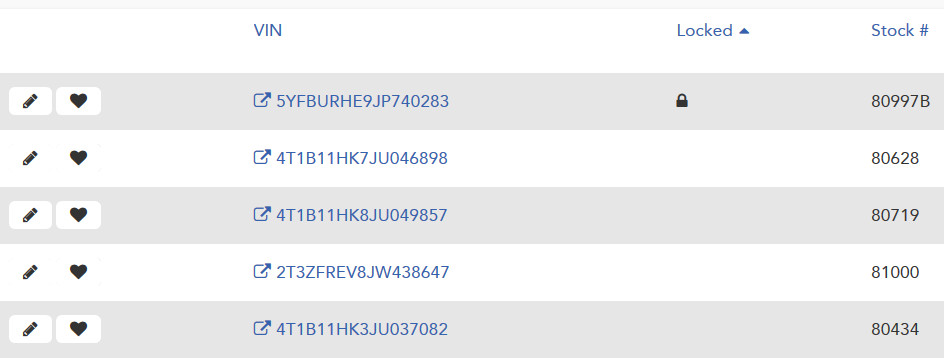
We have added the ability to view your inventory in the inventory manager based on whether the vehicle is locked or unlocked!


Just like the other sortable columns in the inventory manager, all you need to do is click on the column name (in this case, “Locked”). The arrow beside it will let you know if it is in ascending or descending order. Your vehicles will be ordered accordingly, making it easier to find what you are looking for!


Sort by locked vehicles


Date & Time Picker Added to Banners!

By | Feature / Release | No Comments

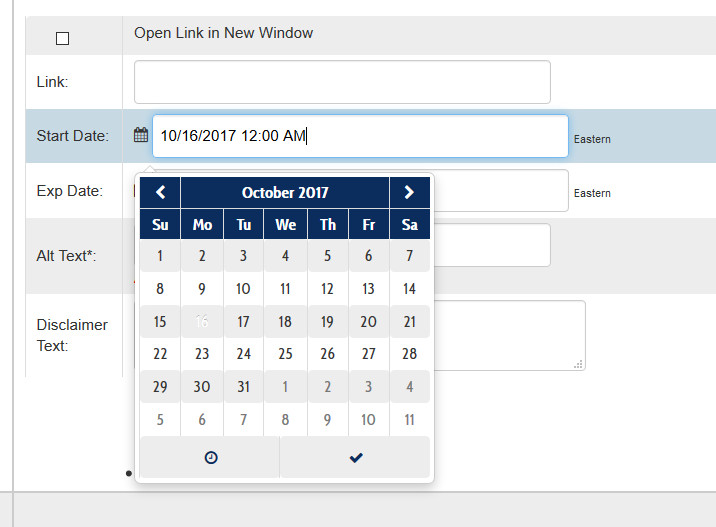
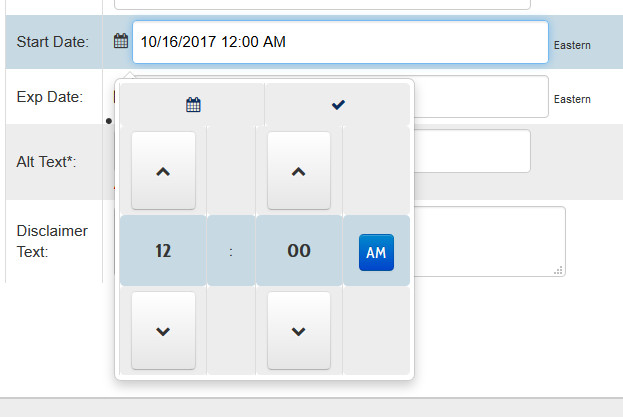
We have added functionality to allow a time to be specified for banner expiration, along with a fancy new date picker. This new functionality will allow you to choose the exact day and time your banners are added and removed from your homepage rotation!


Date picker:

Date Picker


Time picker:

Time Picker


You can access this handy new tool by navigating to Edit Homepage Banners and clicking on the Edit Banner Details button.


Happy Bannering!

Homepage Banner Editor Improvements

By | Feature / Release, Under the Hood | No Comments

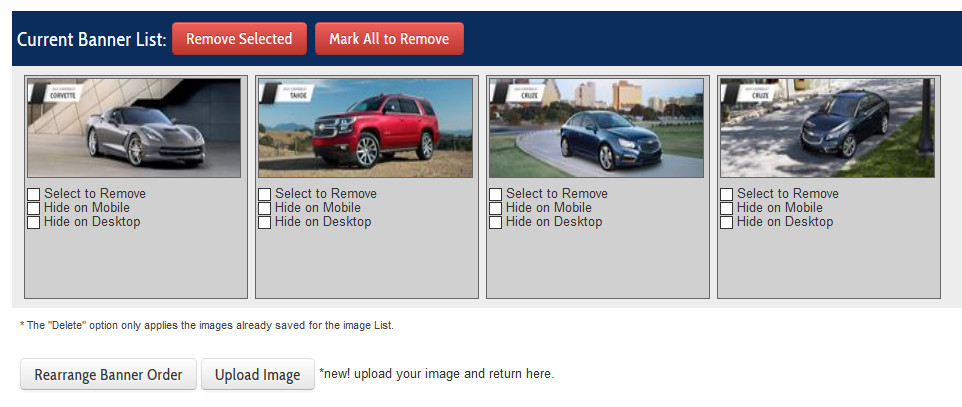
We have made some slight adjustments to the Homepage Banners page in order to improve ease of use. The white “Delete List” button below the Current Banner list has been removed, and a new red “Mark All to Remove” button was added next to the red “Remove Selected” button. See the following screenshot for what this looks like now:

Banner List Editor


We feel that these improvements will make everyone’s life a little easier!


Responsive Staff Page Options

By | Feature / Release | No Comments

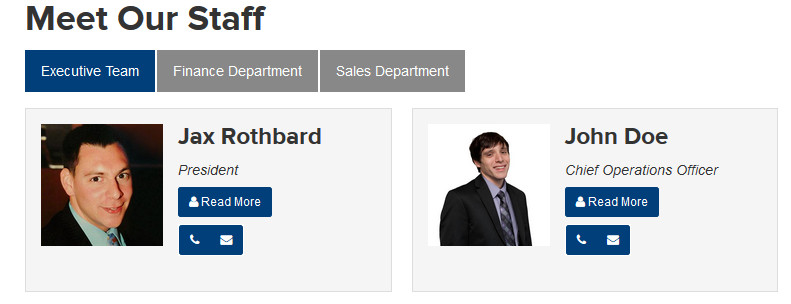
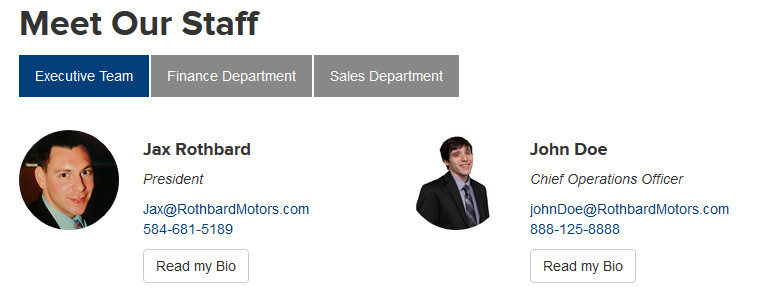
Responsive layout options for staff page are available as versions 1 & 2. Version one is the square picture option, Version 2 is the circular picture.

staffpagelayout

The staff page is able to be accessed by logging in to the CMS and  navigating to Content -> Edit Staff Page. Once on that page, the layout options can be found by clicking into Change Page Settings.

Version 1

layoutv1

Version 2

layoutv2