Full width image functionality has been expanded to VDPs on mobile. Your support team can turn this feature on for you lickety-split. Just give us a call! Read More
Finally!!! Full width vehicle images available on our mobile SRPs! This feature also applies to the pricing and details sections on the SRPs, too, and we’ll be rolling it out to VDPs very soon. Stay tuned! Read More
A small but important update! We’re happy to announce we’ve improved the page load speed of the Site Content section of the CMS. You should now see this part of the CMS loading much, much faster. Yeehaw!
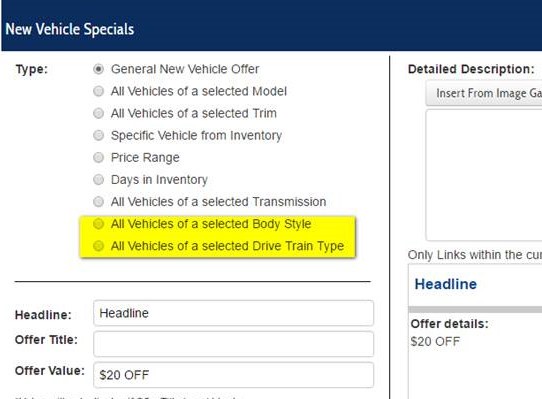
A few weeks back we updated the specials builder to be able to create specials based on transmission type, and now we’ve added even more options! You can now create specials based on a specific body style or drive train. The additional options are available under the “Type” dropdown in the specials builder. Happy specials building!
The DealerOn team has been working away getting all dealers moved over to our new inventory system. Those dealers on the new system will now see our new Inventory Manger user interface in the backend by going to Inventory > Manage Inventory in the CMS. Contact your support team if you’d like a quick tour!

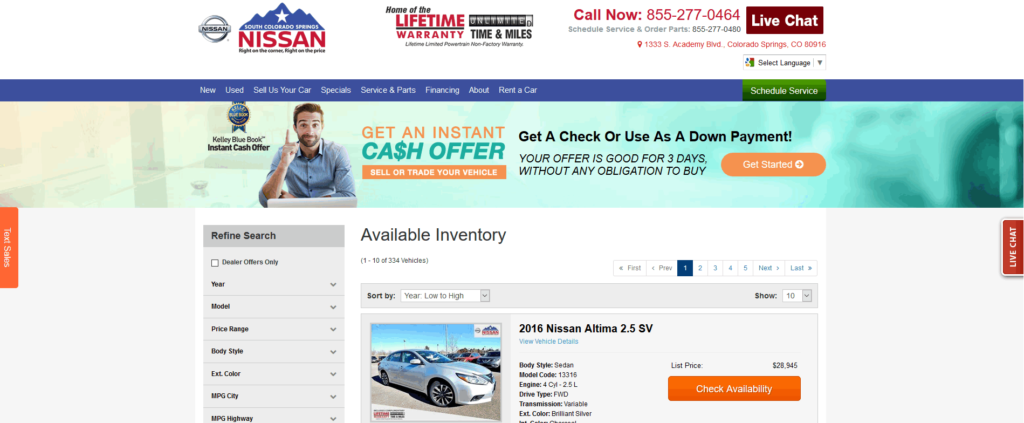
Ask and you shall receive! By popular demand, we now have the ability to create full width inventory pages. If you’re interested in taking advantage of this new feature, just reach out to your Support team and we’ll take it from there!
Our Google Maps integration now pulls from Google MyBusiness to populate the embedded Google map on all websites. (We recommend this method over using latitude/longitude). The Dealer Info section of the CMS has been updated to to include a Google Maps Configuration section with the ability to enter either latitude/longitude or Google My Business name.
Select the Google My Business option and you’ll need to enter the business name associated with your Google MyBusiness account, which will then query Google Maps for the business location. Once set, this will populate for ALL maps that are generated by our platform for you site – hours page, about us page, and VDPs, home page, etc.
To see it in action, go to CMS > DealerOn Services > Dealer Info > Address. In the “Google Maps Config” dropdown, select “Use Google My Business”. Enter your dealership name in the text box, select the listing and voila! – the map will update. You’re also able to control the zoom level, map type, street view, Google rating, and much more. We are incorporating these options to start and will incorporate additional options in the future!

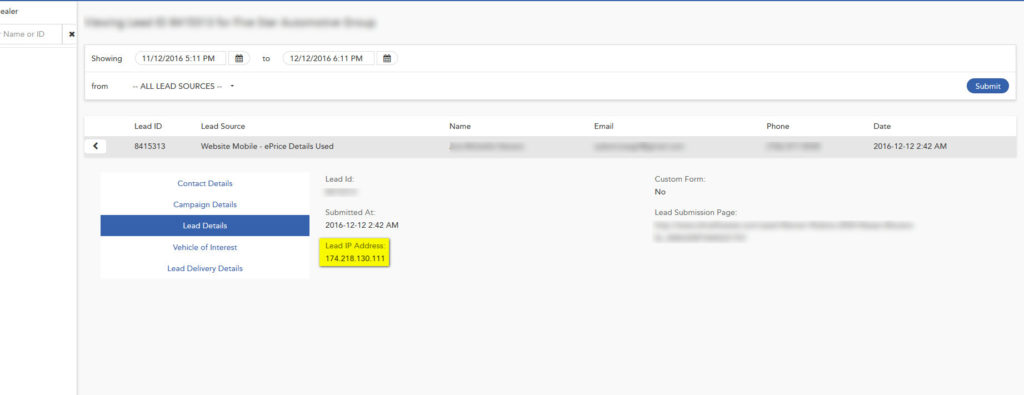
We are now displaying the IP address for all leads. This is only viewable in the CMS and is not sent to your CRM with the rest of the lead information.
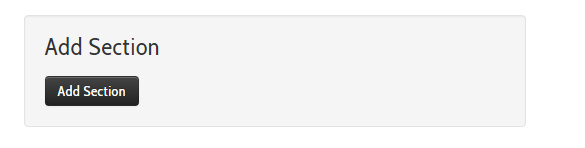
We consolidated the “Add Section” and “Custom Section” area in the Site Content section of the CMS. Previously, when adding a custom section, it automatically created a blank custom page with a generated URL ( i.e.: /custom5.html) which no one used. Now you can add sections the same way you would add a page to the site.
Before:

After: